No topics match that search. Try another word or clear the search.
1. Start your company workspace
DLD is a browser-based workspace for recording haulage activity and checking the charges and payments attached to it. Each company has its own customers, job sites, routes, loads and financial records.
- Choose Start free trial, enter your company name, your name and email, and create a password of 14–72 characters.
- The signup user becomes the company Owner. No card is required for the 14-day trial.
- Use Getting Started in the portal to prepare the company, customer and job details before entering loads.
New workspaces are empty apart from starter settings and suburb suggestions. Screenshots in this guide are demonstrations, not records added to your account.
2. Understand the two roles
| Action | Owner | Data Entry |
|---|---|---|
| See company records, rates and financial totals | Yes | Yes |
| Enter loads, fuel, hours, charges and rebates | Yes | Yes |
| Reconcile RCTIs, mark payments and issue company invoices | Yes | Yes |
| Manage company users and password resets | Yes | No |
| Approve or revoke platform support access | Yes | No |
| Manage subscription or download workspace backup | Yes | No |
An Owner adds a helper under Users. A newly created helper receives a temporary login and must set a personal password before using the workspace. Share temporary credentials privately. Keep at least one active Owner.
3. Prepare customers, jobs and rates
- Open Settings and check your company details, GST settings, preferred weight units and reminder preferences.
- Open Boral Settings. Boral is provided automatically as the current customer. Review the minimum billable tonnes (default 25) and payment settings; check these apply to your work. Historical non-Boral records remain available in reports.
- Add the customer’s Job Sites. Keep separate sites for jobs that need different details.
- Open Company Rate Cards, choose the customer and published schedule, and select Accept rate card for company.
- Under Routes / Jobs, maintain reusable suburb pairs, confirmed route kilometres and any special rate. A route’s minimum-tonne override can differ from the customer default; blank uses the customer minimum and zero removes it for that route.
Customer details, route exceptions and rate overrides are private to your company. Published central rate cards and explicitly confirmed Boral route references are shared.
Use shared confirmed kilometres
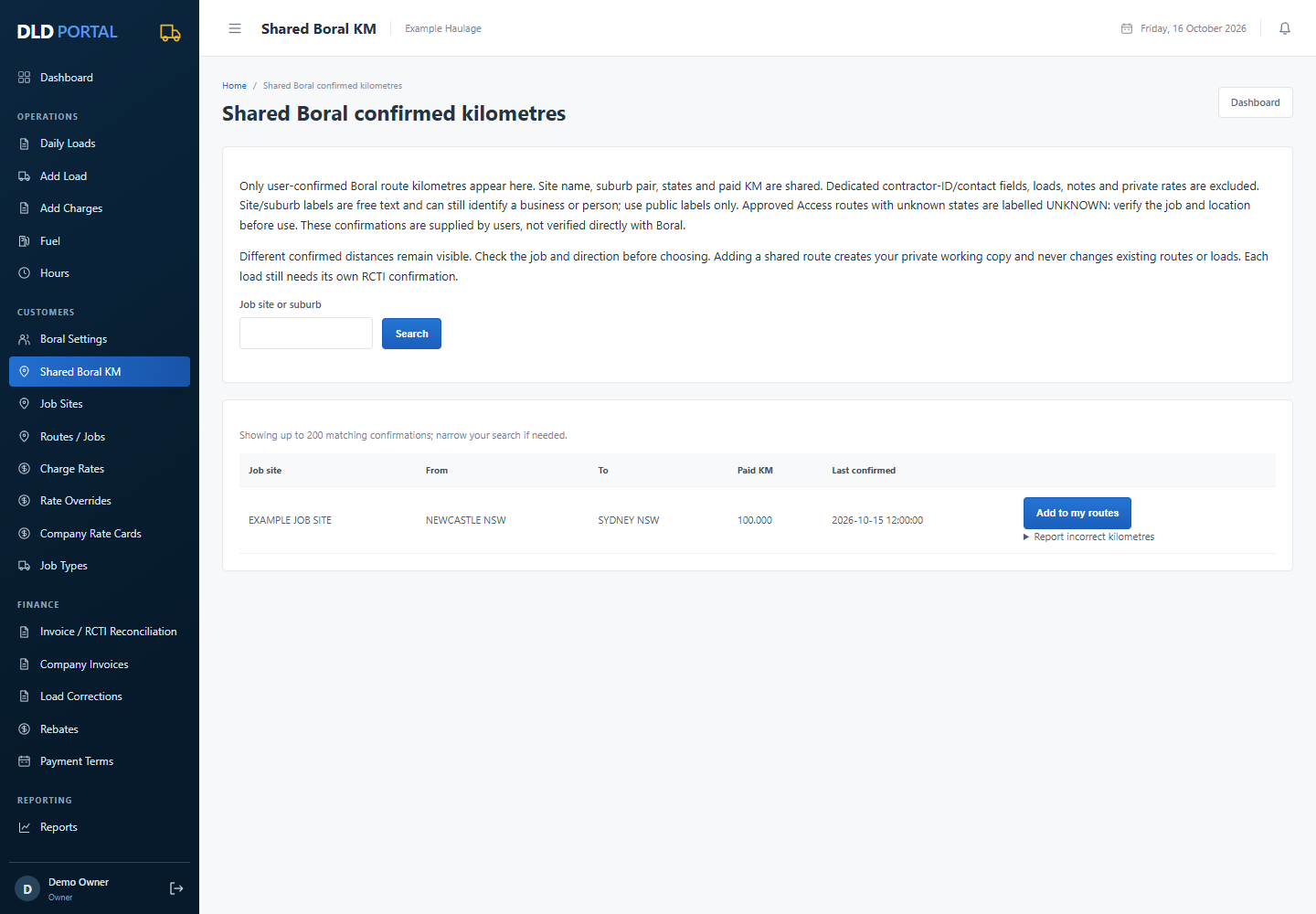
- Open Shared Boral KM or the shared-route link in Add Load / Routes.
- Search by job site or suburb. Check origin, destination, states and direction. Different confirmations remain separate when kilometres disagree.
- Select Add to my routes. DLD creates a local Boral site/route copy when needed, without changing existing routes or saved loads.
- Use it when adding a load. Confirm the actual RCTI kilometres separately for each load.
- Confirmed routes approved from the original Access database are shared. To share a newly added route, edit it, record both states, confirm paid KM and separately tick Share this confirmed route with other contractors. Leave sharing unticked to keep it private. A load can update its reusable route when you choose Confirm invoiced KM for this route too; that does not opt a new route into sharing.
- Untick sharing, unconfirm or deactivate your source route to withdraw your contribution. Confirmations from other contractors remain.
Only site name, origin/destination suburbs and states, paid KM and confirmation date are visible to other tenants. Unconfirmed estimates stay private. Approved confirmed Access routes with missing states are labelled UNKNOWN; verify the location before use. New shared routes require both states. Dedicated contractor-ID/contact fields, private rates, dockets and notes are excluded. Site/suburb labels are free text and can still identify a person, business or confidential job; use public labels only. These are user/source confirmations, not direct Boral verification.
Use Report incorrect kilometres beside a reference to send an explanation to admin. The reference is flagged pending review; reporters’ messages and identities are not shown in the shared list. Reporting or reviewing does not change anyone’s loads, routes or charges.
4. Enter a daily load
Use a previous route
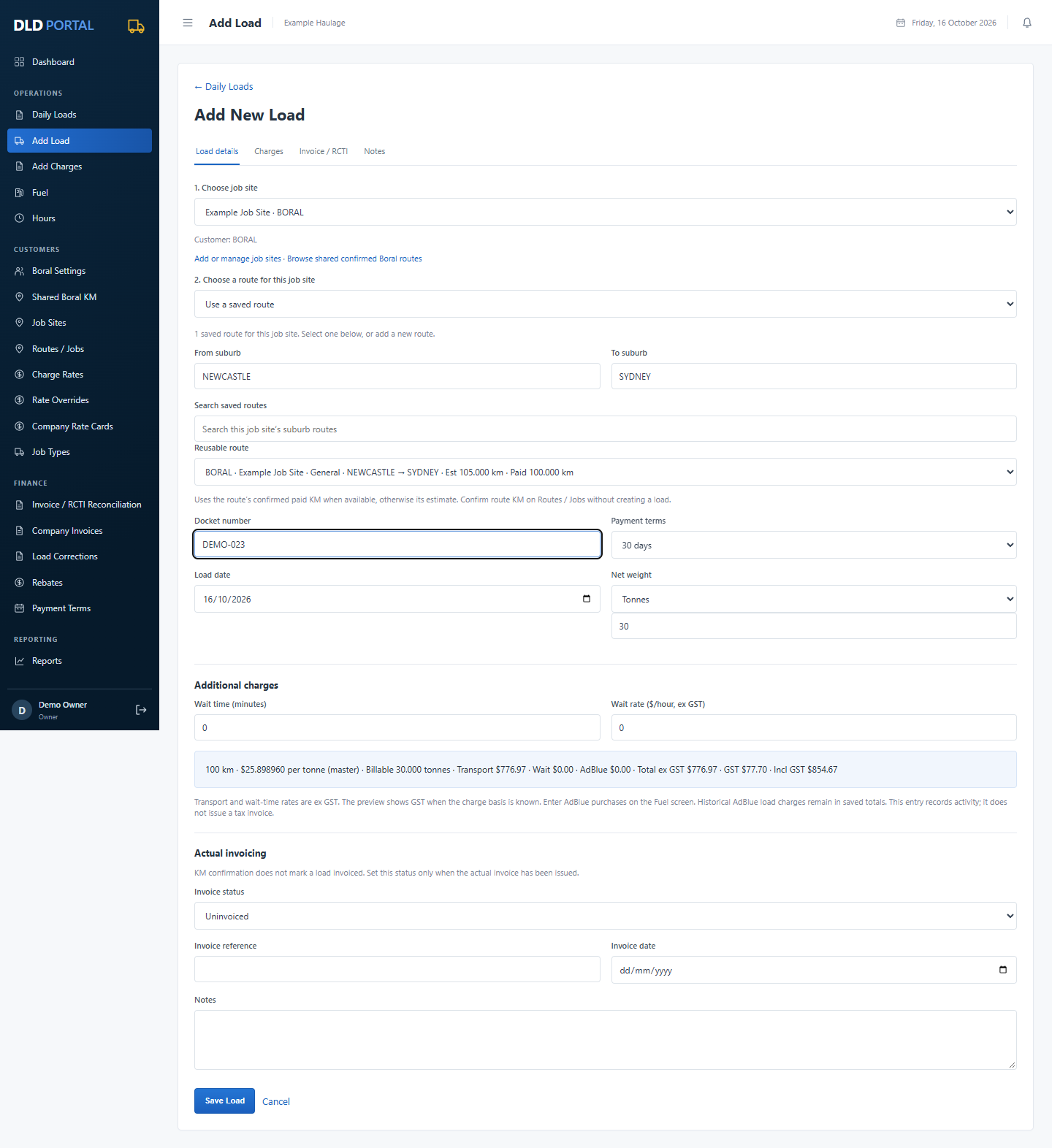
- Open Add Load and choose the Job site first. Its customer is filled automatically.
- DLD shows saved routes for that job site. Choose one directly, or start typing its From suburb.
- Start typing the To suburb. Suggestions narrow to destinations on the selected job site’s matching previous routes.
- A unique match selects the saved route. If more than one saved route matches, choose the correct Reusable route.
- Enter the docket number, load date and actual net weight. Choose tonnes or kilograms explicitly.
- Enter waiting minutes, the ex-GST hourly waiting rate. Check the charge preview. Enter AdBlue litres and its ex-GST price per litre on the Fuel screen with the odometer reading. Reports provides diesel and AdBlue KPIs in litres/km, litres/100km and cost/km ex GST. Diesel cost uses stored ex-GST receipt totals before rebates. The first reading is a baseline. Keep diesel and AdBlue costs separate; historical load charges remain unchanged.
- Keep invoice status Uninvoiced until an actual invoice or RCTI exists, then save the load.
Enter a new job
Keep the job site selected and choose Add a new route for this job site. Enter the suburbs and states, then use Estimate road KM or enter an estimate manually. If the site has no saved routes yet, this new-route entry opens automatically. Save the load to create or reuse the matching route for that site.
Road estimates use suburb centres and ordinary car routing. They are guidance for a new job, not certified truck routes or confirmed Boral kilometres. Check truck access and the actual Boral distance separately.
Understand the charge
Distance selects a dollars-per-tonne rate. Transport is rate × billable tonnes; kilometres are not multiplied again. Billable tonnes use the applicable minimum when it exceeds actual net tonnes. Waiting is minutes ÷ 60 × hourly rate. GST and additional charges are shown separately.
For example, a $25.89896 rate and 30 billable tonnes produce $776.97 ex GST in transport. This is a calculation example, not a promised current Boral rate.
5. Confirm Boral kilometres for a load
- Locate the docket in Daily Loads and select Edit.
- Enter the actual paid kilometres from that load’s Boral RCTI.
- Tick These kilometres are confirmed by Boral for this load.
- If the same paid distance should guide future loads, also select Confirm invoiced KM for this route too.
- Review any change in rate or charges and save. Enter the actual invoice/RCTI reference and date when recording invoiced status.
A known route distance does not automatically confirm a new load. Route confirmation also does not mark a load invoiced or paid.
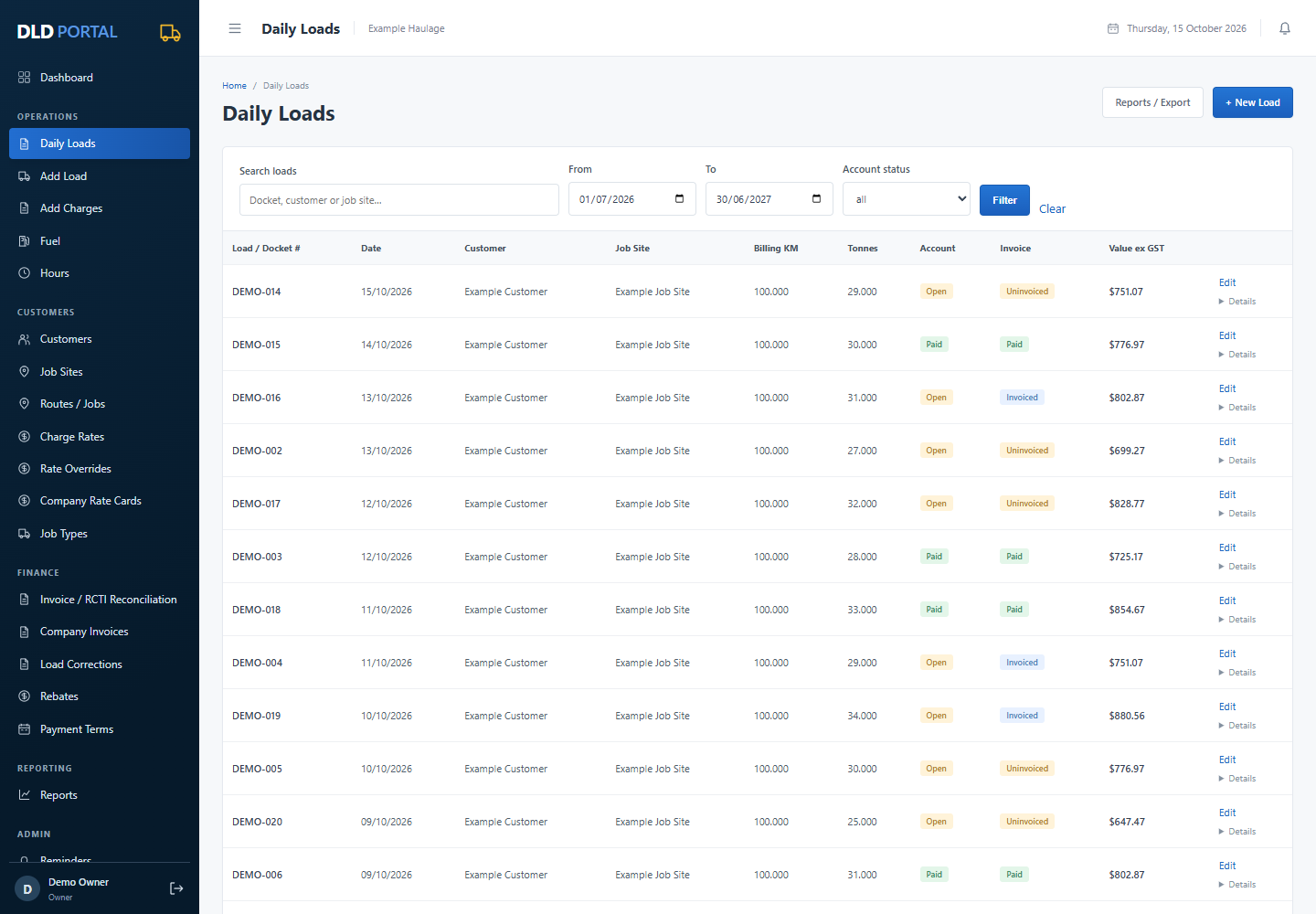
Saved historical amounts remain intact when you change notes alone. Distance changes, an explicit rate refresh or a deliberate correction may recalculate a load, so inspect the resulting charge before saving.
6. Reconcile an invoice or RCTI
- Open Invoice / RCTI Reconciliation and choose the date range and account status.
- Compare the shown dockets and charges with the actual document.
- Confirm each load’s paid kilometres before marking it paid.
- Select the matching records, enter the actual invoice/RCTI reference and date, and choose Paid, Dispute or Open.
- Select Process Selected and review the updated records.
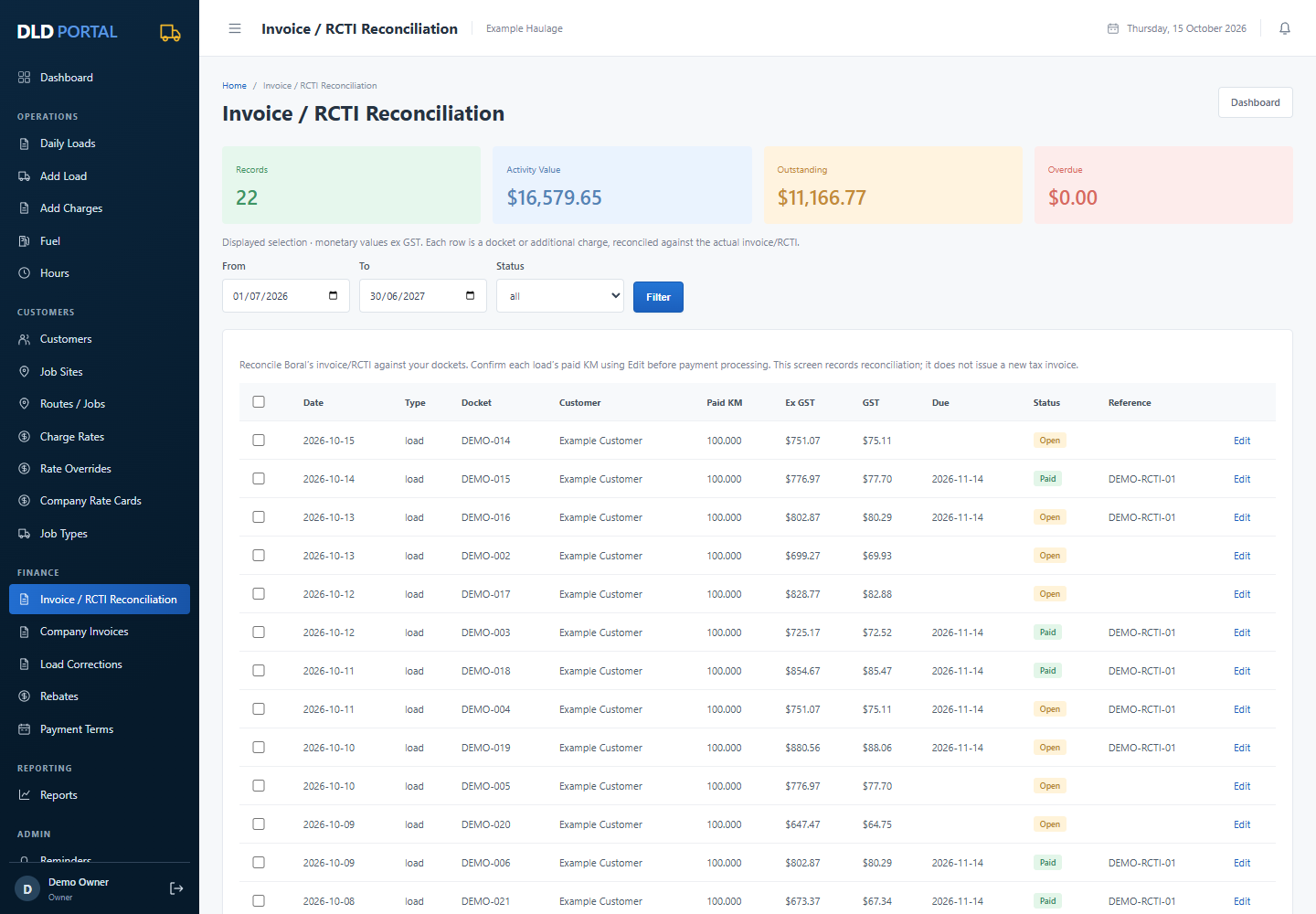
Due dates use the invoice/RCTI date: 7 days, 30 days, immediate, or the 15th of the following month. This screen records reconciliation; it does not send information to Boral or collect money.
7. Issue an invoice for another customer
- Check your company details and the customer details before producing a customer-facing document.
- Open Company Invoices. Choose a non-Boral customer, enter a unique invoice number, invoice date and payment terms.
- Select uninvoiced loads or additional charges for that one customer. Confirm any uncertain GST first.
- Select Issue selected invoice. DLD saves a document snapshot and marks the selected activity invoiced.
- Open the saved invoice and use Print / Save PDF. Send it through your own business communication process.
Boral uses the RCTI workflow. Issued company invoices preserve their document snapshot even if customer details change later. DLD does not automatically email invoices.
8. Accept a new rate card & review backpay
- When a new published Boral card becomes available, open Company Rate Cards.
- Check its version, effective start date and customer before accepting it.
- Accepting the card activates it for your company’s applicable future pricing. Another company’s acceptance does not activate yours.
- If the card arrives late, the previous accepted card remains available provisionally until you accept the new one.
- Open Review potential backpay to compare eligible candidate loads from the card’s effective date. You can print or save the estimate as PDF.
Backpay comparisons are estimates. The treatment of already invoiced or paid loads in retrospective claims is still being decided. DLD does not automatically rewrite historical amounts, issue a backpay invoice or establish an approved debt from this comparison.
Private special rates and overrides are excluded from the card comparison. Missing card points need review. Old unresolved historical schedules stay flagged rather than being invented.
9. Record fuel, AdBlue, hours and costs
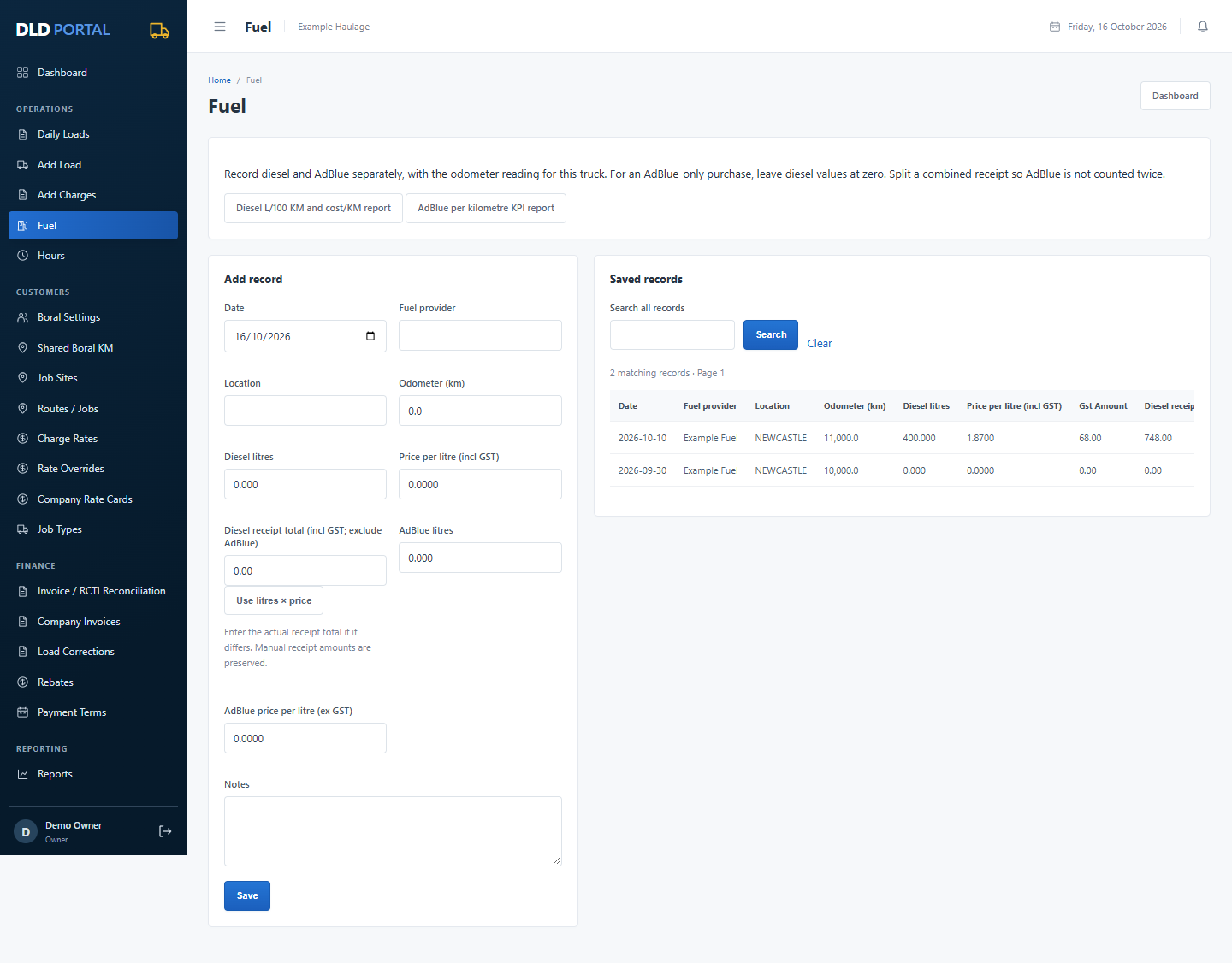
Enter diesel and AdBlue
- Open Fuel. Enter the purchase date, provider, location and truck odometer reading in kilometres.
- For diesel, enter Diesel litres and the price per litre including GST. Check the Diesel receipt total against the receipt. A manually entered amount is retained; use Use litres × price to recalculate when needed.
- For AdBlue, enter AdBlue litres and price per litre excluding GST. DLD saves the calculated cost and GST separately from diesel.
- For an AdBlue-only purchase, leave diesel values at zero. For a combined receipt, split the diesel and AdBlue amounts so AdBlue is not counted twice.
- Choose Save. Use Edit to fix a saved purchase, or Archive to remove it from active reports while retaining history. Odometer readings must fit the dated sequence.
AdBlue is entered in Fuel, rather than on new loads. Historical AdBlue load charges remain in their original load totals and are not treated as fuel purchases.
Read the fuel KPIs
- Choose your financial year or month on the Dashboard.
- Read Diesel L / 100 KM, Diesel cost / KM ex GST and Diesel + AdBlue cost / KM ex GST. AdBlue litres/km is shown separately.
- Open Diesel KPI details or AdBlue KPI details from the dashboard, Fuel screen or Reports.
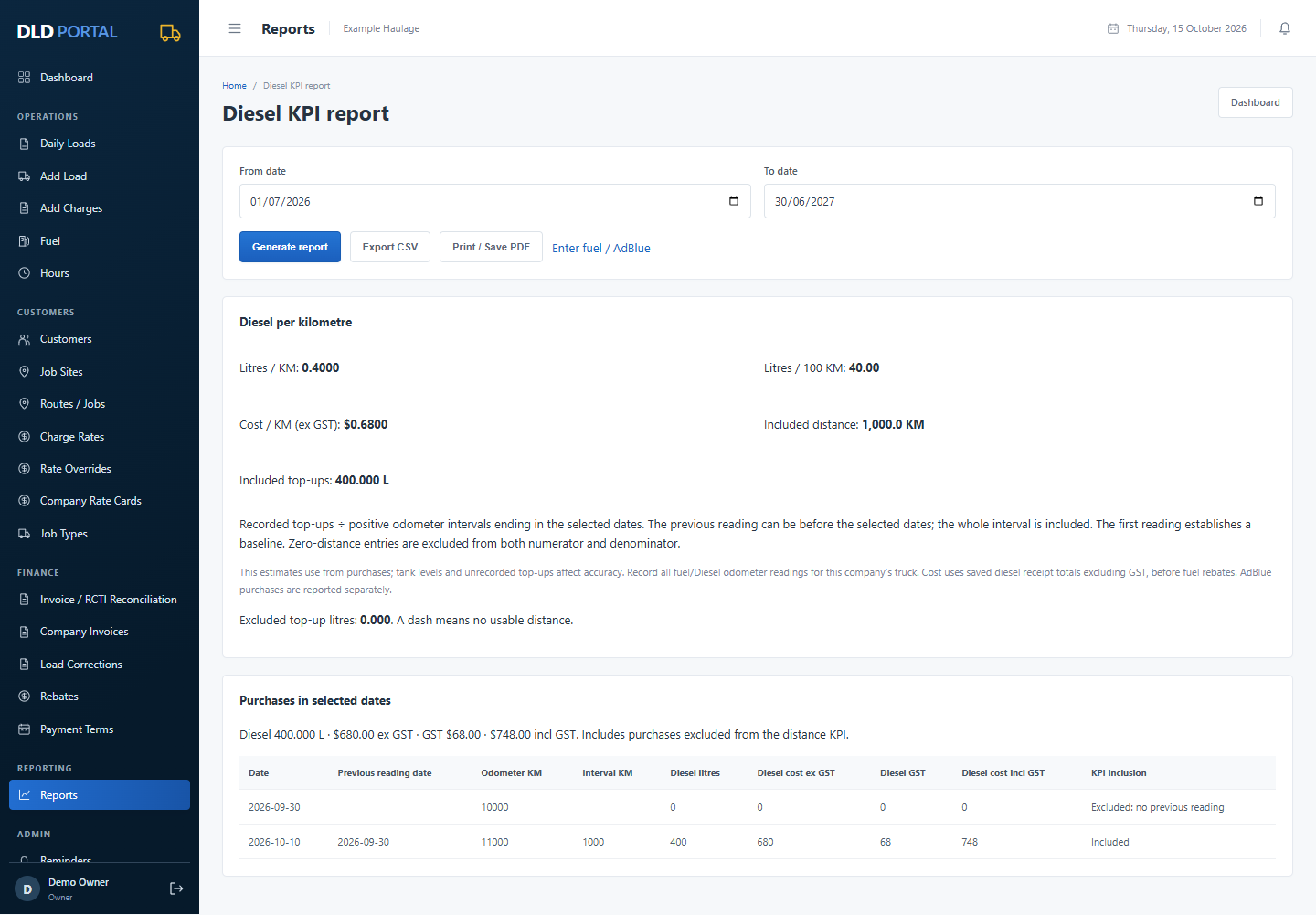
- Set a date range and generate the report. Review the included distance, purchase totals and entries excluded for missing distance. Export CSV or Print / Save PDF.
| KPI | Calculation |
|---|---|
| Diesel litres/100km | Included diesel litres ÷ included odometer kilometres × 100 |
| Diesel cost/km ex GST | Included diesel cost excluding GST ÷ included odometer kilometres |
| AdBlue litres/km and litres/100km | Included AdBlue litres ÷ included odometer kilometres; multiply by 100 for litres/100km |
| AdBlue cost/km ex GST | Included AdBlue cost excluding GST ÷ included odometer kilometres |
| Combined diesel + AdBlue cost/km ex GST | (Included diesel cost + included AdBlue cost, both excluding GST) ÷ the same included odometer kilometres |
Example: over 1,000 included kilometres, 400 diesel litres costing $680 ex GST and 20 AdBlue litres costing $30 ex GST give 40 L/100km, diesel $0.6800/km, AdBlue $0.0300/km and combined $0.7100/km ex GST. Costs are before fuel rebates.
KPIs estimate usage from recorded purchases, not measured tank consumption. Record every top-up and keep a consistent odometer series for the company truck. The first reading is a baseline; entries without a previous reading or positive distance are excluded from both KPI litres/cost and distance. Purchase totals still include those entries. A dash means no usable distance.
The report includes complete intervals ending within the selected dates. The previous reading may be before the period, so this is an interval-based estimate rather than exact calendar-period consumption. Archived purchases and historical load AdBlue charges are excluded.
Other operating records
- Hours: choose the date and time code, then enter hours and notes. Overnight is a separate time entry; this is an operational record, not payroll processing.
- Add Charges: choose the customer, job site, category, quantity and rate. DLD applies the category minimum when it exceeds quantity × rate.
- Rebates: record actual customer, financial year, month and rebate/RCTI fuel-cost figures. Rebates do not reduce the diesel or combined cost/km KPIs automatically.
- Reminders: enter reminders and set the company display preferences.
The dashboard average of positive diesel prices is an arithmetic average, not a volume-weighted average.
10. Fix mistakes and correct loads
Delete a mistaken uninvoiced load
In Daily Loads, select Delete beside the mistaken entry, or open Edit and select Delete load. Review the docket, tick the confirmation and choose Delete load. The load is removed from the list, reports and totals; its route is kept and a snapshot is recorded in your company audit log.
Loads with issued invoice, RCTI or payment history cannot be deleted. Use the cancellation/reconciliation workflow for those records. Another company’s loads and read-only accounts cannot use this action.
Preview a bulk correction
- Open Load Corrections and select active uninvoiced loads with saved routes.
- Enter a reason and select Preview corrections.
- Review the before/after ex-GST values. The calculation uses saved route kilometres, applicable minimums and your accepted card for each load date.
- Select Apply reviewed corrections only when the preview is correct. If the load, route or rate changes in the meantime, generate another preview.
Invoiced and paid loads are excluded. The correction reason and financial change are recorded in the audit log.
11. Review, export and back up
- Choose the financial year or month on the Dashboard to see the period you need.
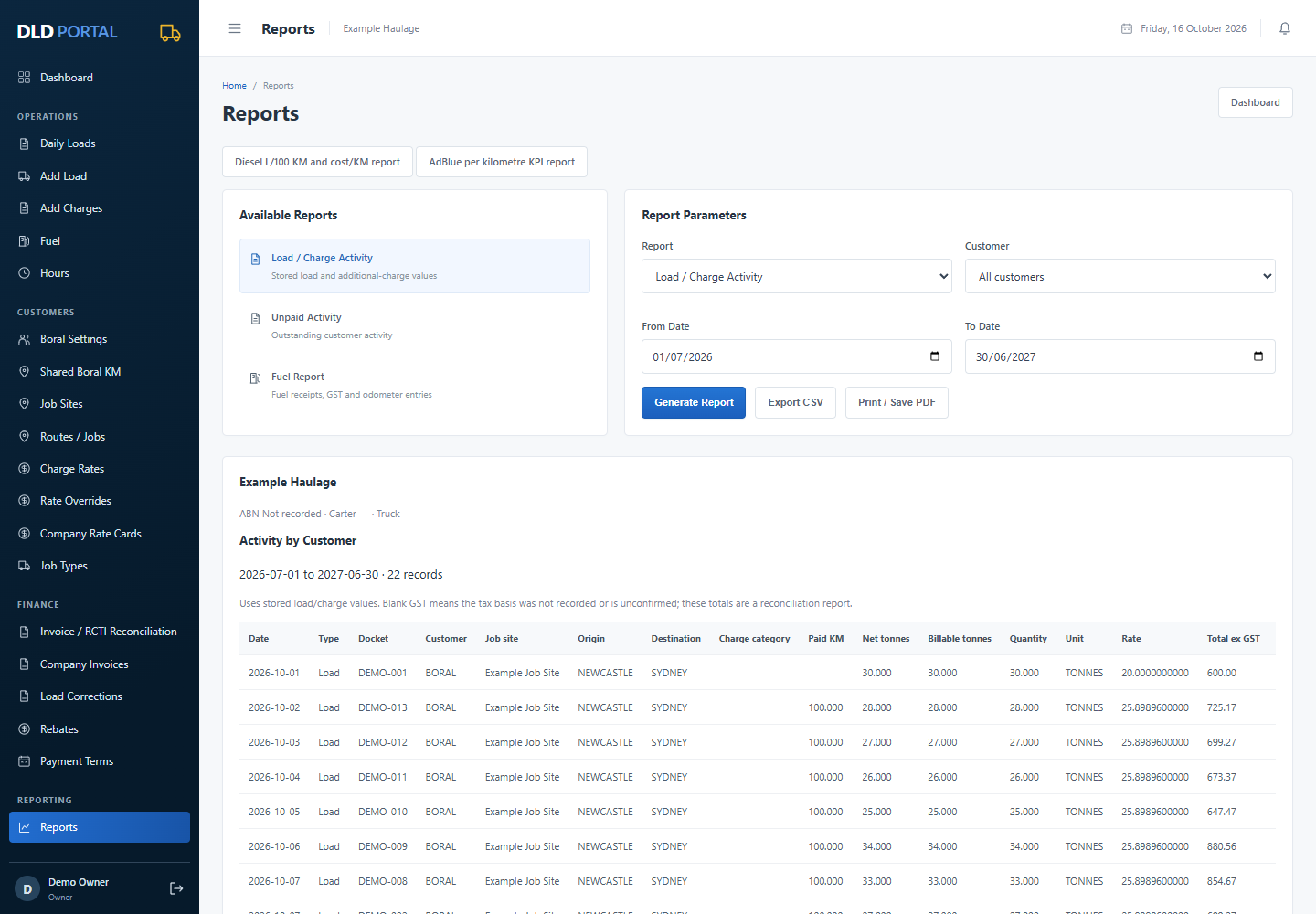
- In Reports, choose Load / Charge Activity, Unpaid Activity, Fuel Report, Diesel KPI or AdBlue KPI. The KPI links appear above the report selector.
- Set the date range and customer where available, then generate the report.
- Use CSV for a spreadsheet or Print / Save PDF for a readable copy.
Owners can download a private company backup under Backups; password hashes are excluded from that download. Keep exported files private. Server backups run daily with 30-day retention on the hosting account. A DLD-managed offsite backup is not configured; the hosting provider may maintain separate copies under its own arrangements, which remain unverified.
If a workspace contains labelled DEMO records, those records are included in matching totals and exports. Arrange removal of the tracked samples before beginning real accounting.
12. Control support access
Ask for help in the Support centre
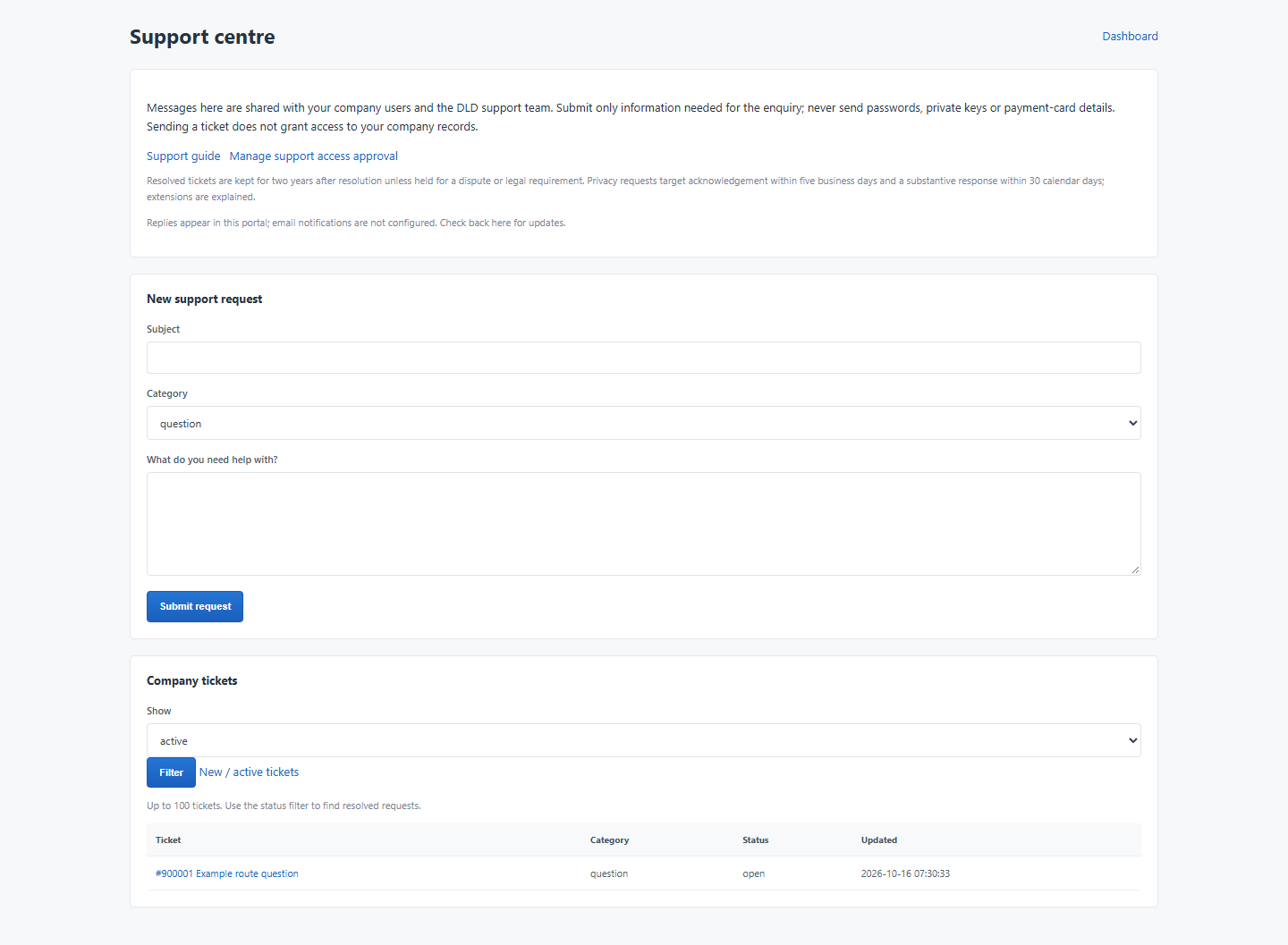
- Open Support centre from the company menu. Both Owner and Data Entry users can use it.
- Enter a subject, category and message, then submit. Describe the issue without sending passwords, private keys or card details.
- Open the ticket to read support replies, add details or change its status. All users in your own company see the same tickets.
- Choose Resolved when complete, or reply with Open to reopen it. Support may mark Waiting company when more information is needed.
- Check the portal for replies; email notifications are not configured. Support remains available after trial expiry. Resolved tickets are kept for two years after resolution unless held for a dispute or legal requirement. Reopening clears the closure date. Privacy requests target acknowledgement within five business days and a substantive response within 30 calendar days; any extension is explained.
The support team can read messages you deliberately submit. A ticket does not approve access to company loads, costs or other operational records. Only your Owner can grant that separately below.
- Your company Owner opens Support Access to review a platform support request.
- Read the named requester, reason and requested scope.
- Approve read-only access when viewing is sufficient. Editing requires a separately requested and explicitly approved edit scope.
- Approval lasts 24 hours. Select Revoke / decline to end or refuse it earlier.
- Review approved portal access in Logs. Data Entry users cannot approve access.
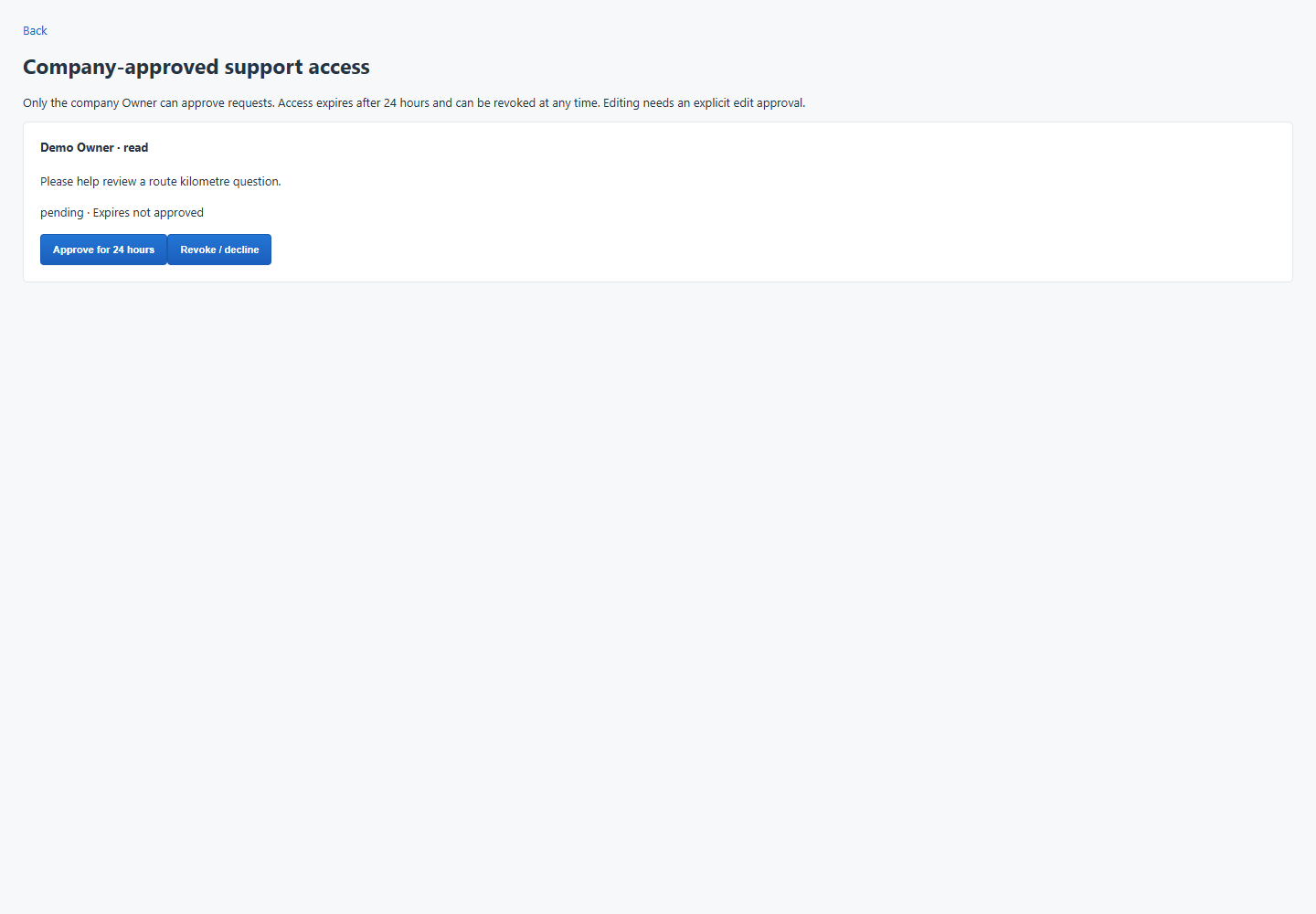
Support approval is a company decision. Signup and platform-admin status do not automatically grant access to your operational records.
See the privacy policy’s infrastructure explanation for the distinction between portal permissions and hosting/database access.
13. Trial, subscription and account help
Your trial runs for 14 days with no payment card. The monthly plan is AUD $25 + GST ($27.50 including GST) per company.
When a trial expires without subscribing, you can still view and export existing data. New entries and edits are paused. Owners use Subscription to see the plan and payment availability. Stripe payment activation is in progress; the portal does not take payments while setup is incomplete.
Passwords and sessions
Use Your Account to change your own password. An Owner can reset a helper’s password, which revokes their older sessions and requires a new personal password. Keep separate accounts for each person and sign out on shared devices.
A result doesn’t look right?
Check the selected company period, customer, route, weight unit, minimum tonnes, invoice date and kilometre confirmation. Review the load’s saved details and audit log before changing amounts. If a road estimate is unavailable, enter an estimate manually and confirm the actual Boral distance later.
For a personal-information access or correction request, follow the privacy policy.